

Investing in a certified refurbished photocopier is one of the smartest budget decisions a business in Abu Dhabi can make. You get an enterprise-grade, high-performance A3 multifunction machine at a fraction of the cost of a brand-new model.
However, just like a well-tuned car, a refurbished copier relies on consistent, proactive care to deliver peak performance. Because these machines have already logged operational hours, routine upkeep is the single most important factor in extending their lifespan, avoiding costly emergency repairs, and keeping your cost-per-page as low as possible.
You do not need to be an IT expert to keep your copier running smoothly. Here is a simple, highly effective maintenance checklist to maximize the life of your refurbished photocopier.
1. Dust is the Enemy: Clean the Scanner Glass Weekly
In Abu Dhabi, fine dust particles in the air can easily settle on and inside your office machinery. When dust accumulates on your copier’s scanner glass or document feeder, it doesn’t just cause unsightly streaks on your scanned PDFs and physical copies—it can actually slip inside the machine and coat delicate optical sensors.
How to clean it safely:
- Safety First: Always turn off and unplug the photocopier before cleaning.
- The Right Cloth: Use only a soft, static-free microfibre or lint-free cloth. Avoid paper towels or tissues, as they can leave behind tiny paper fibers or even scratch the glass.
- The Right Cleaner: Spray a mild glass cleaner directly onto the cloth—never spray liquid directly onto the copier glass. Liquid can seep under the edges of the glass bezel and short-circuit the sensitive electronics beneath.
- Clean the Slit Glass: Don’t forget the narrow strip of glass next to the main flatbed. This “slit glass” is what the automatic document feeder (ADF) uses to scan, and a single speck of dust on it will cause a vertical line down every single scanned page.
2. Load Paper Properly (And Dust the Trays)
It sounds simple, but improper paper loading is the root cause of up to 80% of all office paper jams. When a paper jam occurs, employees often pull the sheets out forcefully, which can bend internal registration guides, misalign feed rollers, or snap delicate plastic gears inside a refurbished copier.
Best practices for paper handling:
- Fan the Paper Stack: Before placing a ream of paper into the tray, fan the edges gently. This releases static electricity and prevents multiple sheets from sticking together and feeding at the same time.
- Adjust the Guides Snugly: Make sure the plastic paper guides in the tray touch the edges of the paper stack snugly, but not too tightly. If they are too loose, the paper will feed crookedly, causing a jam. If they are too tight, the paper will buckle.
- Never Overfill: Every paper tray has a maximum fill line. Going over this line puts extra strain on the paper feed rollers, wearing them down prematurely.
- Clean the Trays: When a paper tray is empty, take a quick second to wipe it down. Paper dust (the tiny white fibers shed by paper sheets) naturally settles at the bottom of the tray and will eventually clog the rubber pickup rollers.
3. Invest in High-Quality Paper
When companies look to cut costs, they often opt for the cheapest, lowest-grade paper available on the market. While this might save a few dirhams upfront, it is incredibly expensive in the long run.
Cheap, low-grade paper is often roughly cut and coated in heavy paper dust. As this paper travels through your photocopier’s high-heat fuser unit, it sheds millions of micro-particles. This dust mixes with residual toner powder to create a thick, sticky grime that coats the internal rollers, triggers sensor errors, and causes paper slippage.
Investing in standard, high-quality, low-dust paper protects the internal mechanical parts of your refurbished machine and ensures crisp, clean toner adhesion.
4. Empty the Waste Toner Bottle on Time
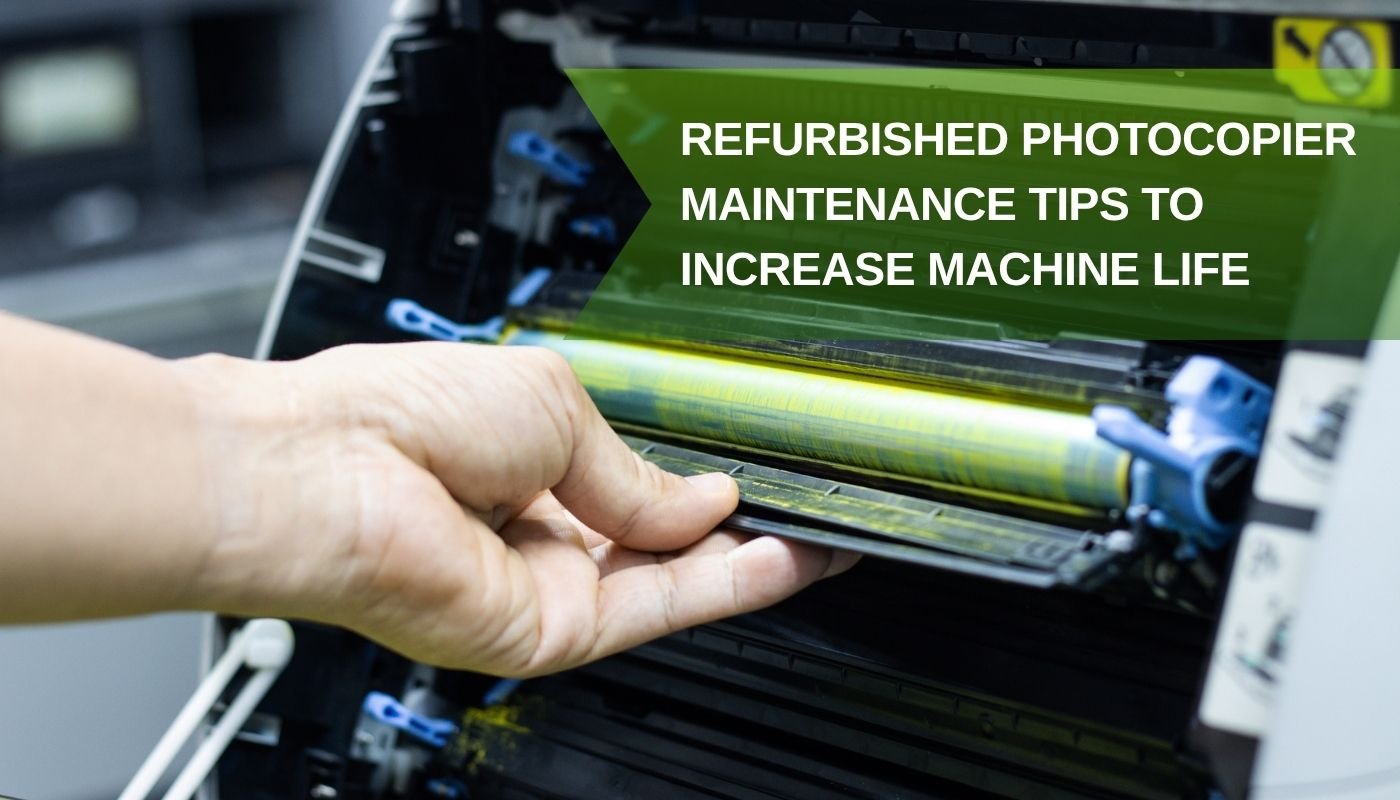
During the printing process, not every speck of toner powder transfers perfectly to the paper. Your photocopier is designed with a specialized cleaning blade that scrapes this excess powder off the drum and deposits it safely into a waste toner bottle.
Modern refurbished photocopiers will display a warning message on the LCD screen when this bottle is almost full.
Never ignore a waste toner warning. If the waste toner bottle overflows, the fine plastic powder will spill into the internal gear drives, belts, and optical lasers. Cleaning up a major toner spill is a highly messy process that often requires a professional technician to deep-clean the entire chassis. Keep a spare empty waste toner bottle on hand and replace it immediately when prompted.
5. Give the Copier Room to Breathe
Where you place your refurbished photocopier in your office directly impacts how long its internal heating elements and cooling fans will last.
Large office copiers generate a massive amount of heat, particularly from the fuser assembly, which operates at temperatures high enough to melt plastic toner powder onto paper. If the copier cannot vent this heat, the internal circuit boards and plastic gears will slowly degrade.
Placement tips:
- Leave a Gap: Never push your photocopier flat against a wall or squeeze it tightly between office desks. Keep at least 15 to 20 centimeters (6 inches) of clear space around all sides of the machine to allow the cooling fans to exhaust hot air.
- Avoid Heat Sources: Keep the copier out of direct sunlight and away from office pantry appliances, heaters, or direct air conditioning drafts that can cause rapid temperature changes and internal condensation.
6. Partner with a Reliable Service Provider for Regular PMs
While daily and weekly cleaning can easily be handled by your office staff, a refurbished photocopier still needs professional preventative maintenance (PM) to reach its maximum lifespan.
Just like changing the oil in your car, a professional service technician should inspect your copier every 3 to 6 months (depending on your monthly printing volume).
During a routine preventative maintenance visit, a certified technician will:
- Deep-clean the hard-to-reach internal paper paths and drive gears.
- Inspect high-wear consumable parts, such as the pickup rollers, transfer belt, and fuser unit.
- Replace any parts showing more than 50% wear before they fail and cause unexpected downtime.
- Update the copier’s firmware to ensure it remains secure on your office network.
Quick Summary Maintenance Checklist
Keep your office running efficiently by assigning these simple intervals to your team:
Frequency | Maintenance Task | Why It Matters |
Weekly | Wipe down the scanner platen and document feeder glass with a microfibre cloth. | Prevents lines and smudges on scanned files. |
Weekly | Wipe down the exterior housing and clean out any loose paper dust inside empty trays. | Keeps dust from reaching sensitive internal sensors. |
Monthly | Check toner levels and ensure you have a spare waste toner bottle in stock. | Prevents sudden work stoppages or messy internal spills. |
Every 3–6 Months | Schedule a professional technician checkup or sign an Annual Maintenance Contract (AMC). | Replaces worn components before they cause system breakdowns. |
By spending just five minutes a week on basic upkeep and choosing high-quality paper and consumables, your team can easily double the operating life of a refurbished photocopier. You’ll enjoy crisp, professional documents daily, minimize paper jams, and get the absolute best return on your technology investment.
At Greens Wave, we don’t just sell and rent top-tier office machinery—we keep them running like new. All of our certified refurbished photocopiers go through a rigorous multi-point inspection and parts-replacement process. Contact our Abu Dhabi service team today to learn about our affordable preventive maintenance plans!